
Multi-factor authentication
Overview
Multi-Factor Authentication (MFA) provides an additional layer of security for users accessing the Azupay Dashboard.
Azupay supports role-based enforcement of Multi-Factor Authentication (MFA) for Dashboard users. When MFA is enabled for a client’s selected role groups, users must enrol and authenticate using a Time-based One-Time Password (TOTP) from an authenticator app before they can access or operate within the Dashboard.
This feature enhances account security by ensuring that privileged or sensitive user roles are always protected by MFA.
Users cannot bypass MFA setup or proceed without successful authentication and enforcement of MFA is tied to the user’s assigned roles, not individual user settings.
MFA user enrolment experience
Flow trigger:
A user already assigned to an MFA-required role group who has not yet enrolled an MFA device attempts to access the dashboard.
Behaviour:
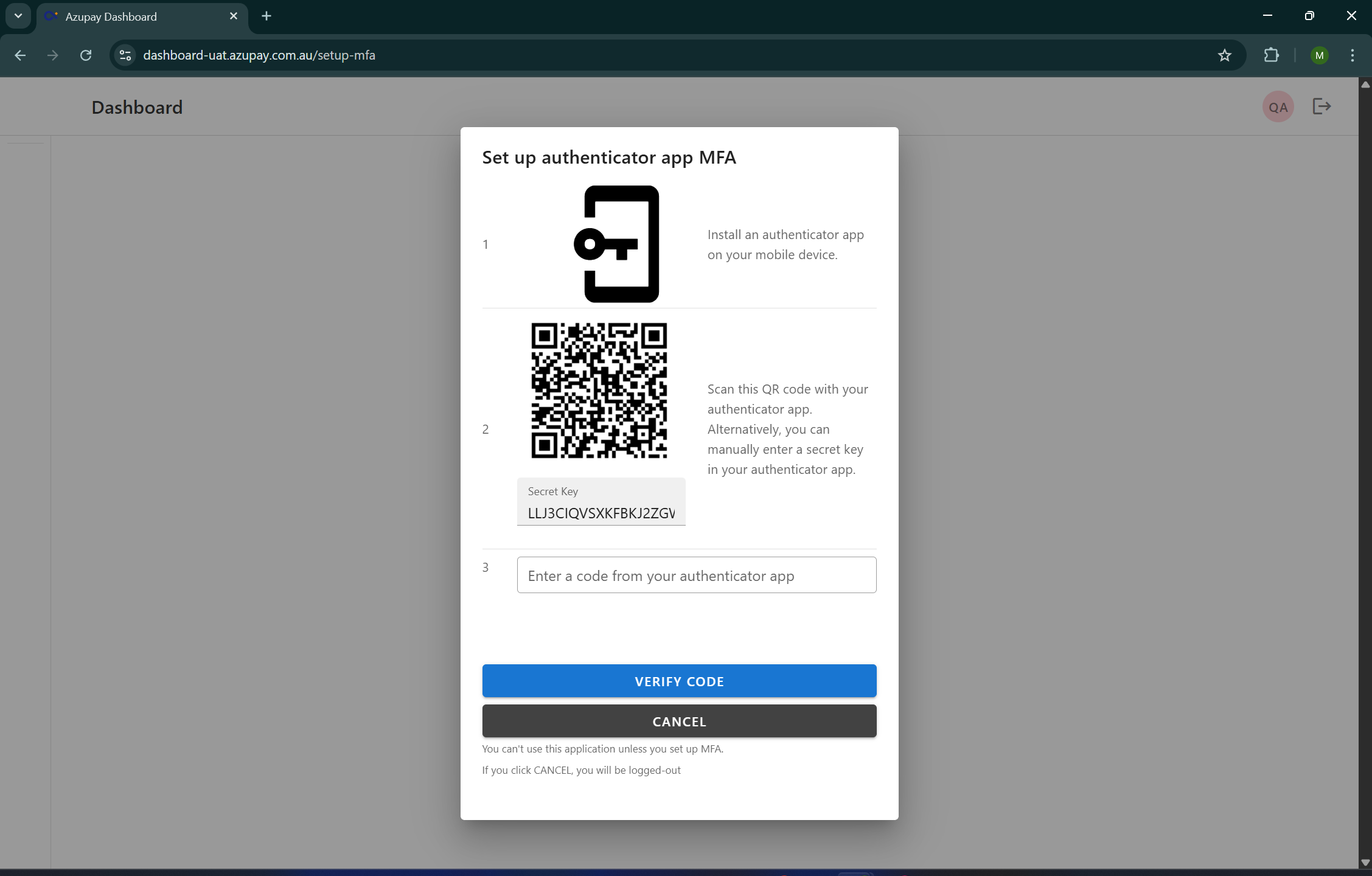
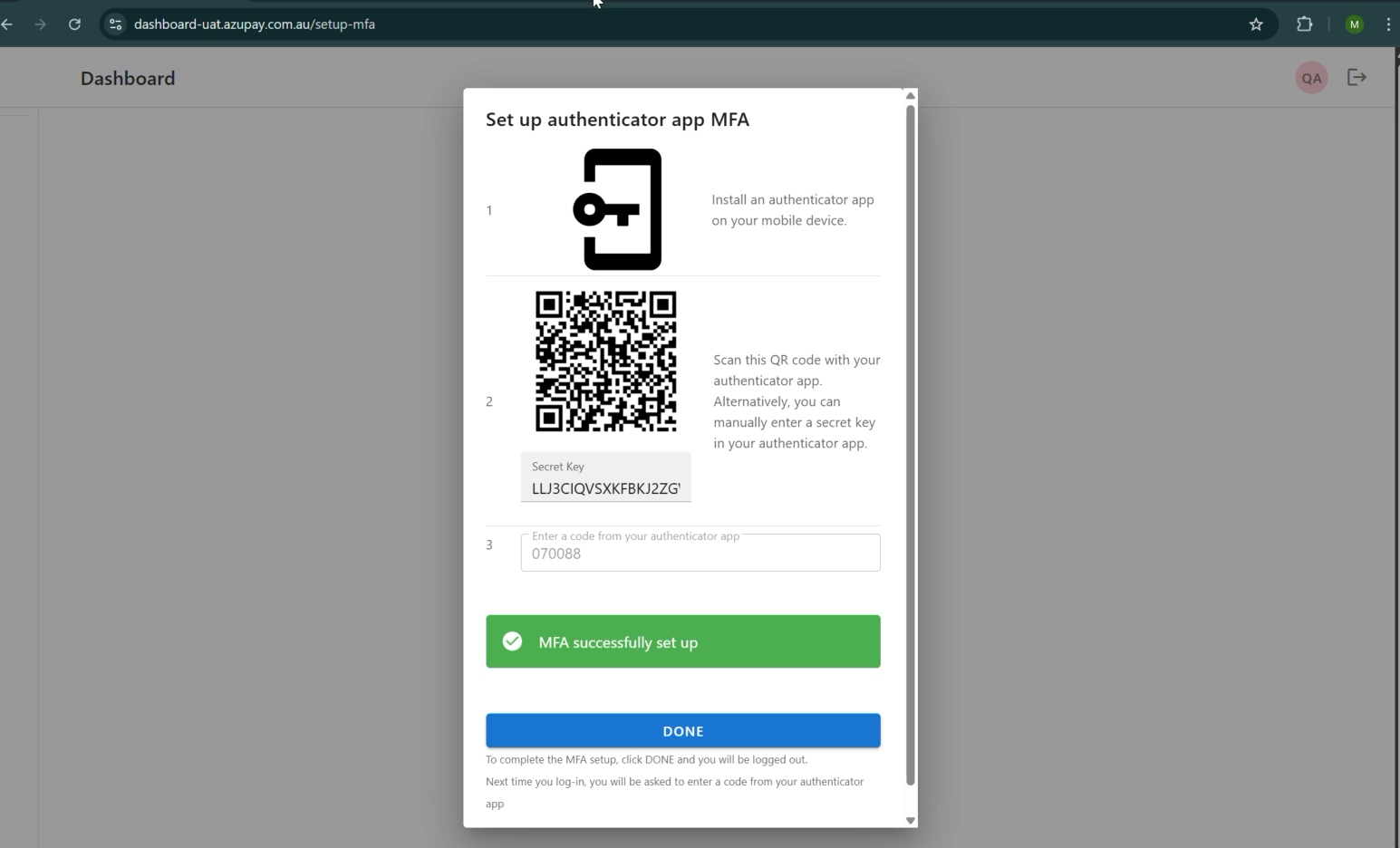
- On their next login attempt, the user is intercepted and prompted to set up MFA.
- Only TOTP-based authentication is supported (via any standard authenticator app).
- The user cannot access or perform any Dashboard actions until MFA enrolment is completed.
- Once enrolled, the user is redirected to authenticate and may then proceed to the Dashboard.
This ensures existing privileged accounts are remediated and secured without admin intervention.
Flow trigger:
A new user is created and assigned to a role group that requires MFA.
Behaviour:
- When the user opens the Dashboard for the first time, the standard account creation flow is presented
- During onboarding, the user is prompted to set up MFA via TOTP, which becomes a mandatory step before the account can be activated.
- After MFA enrolment, the user must successfully authenticate via MFA before their first login is completed.
- Only after passing MFA can the user access the Dashboard environment.
This ensures new privileged accounts are secure from the moment they are created.
Flow trigger:
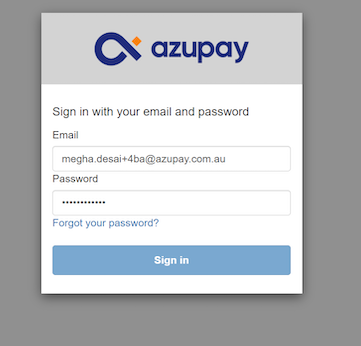
A user with MFA already enrolled attempts to log in to the Dashboard.
Behaviour:
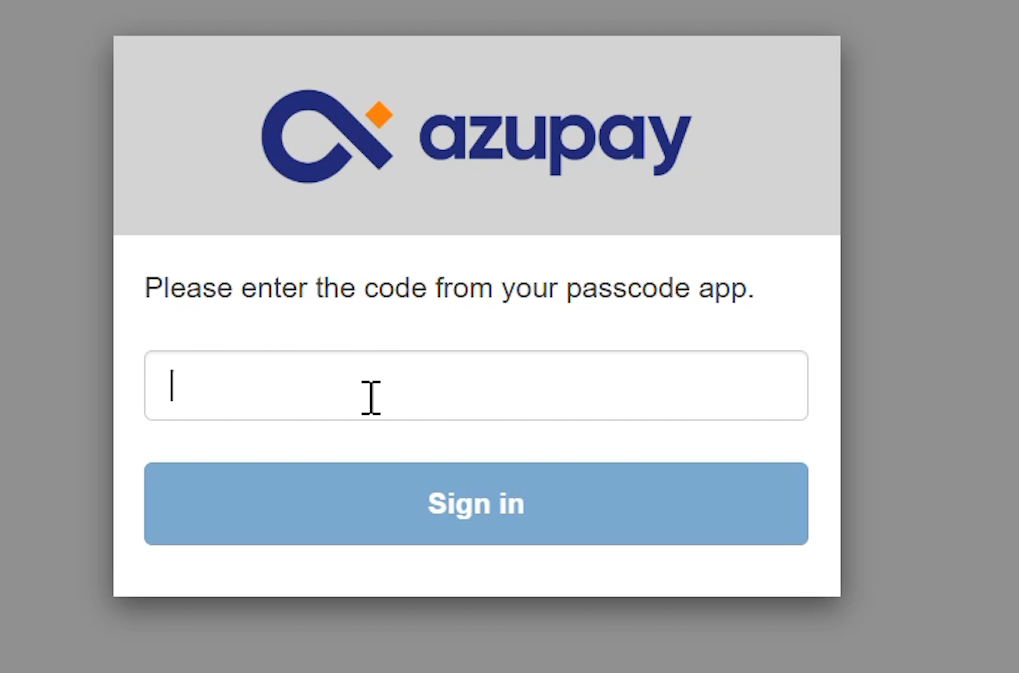
- The user is presented with the MFA prompt and must enter their TOTP code.
- Successful MFA authentication grants access to the Dashboard.
- Failed attempts follow existing authentication and lockout policies.
This ensures ongoing MFA enforcement for all privileged users.
Any TOTP-compatible authenticator app may be used (e.g., Google Authenticator, Microsoft Authenticator, Authy). We recommend speaking to your technology team for advice on which app is best to use
MFA Device Reset & Recovery
Azupay provides structured mechanisms for resetting a user’s Multi-Factor Authentication (MFA) device when they lose access to their authenticator app or change devices. Thesreset flows as outlined below ensure users can securely regain access while maintaining strong MFA enforcement policies across clients and account hierarchies.
The MFA reset capability is available through two channels:
- Admin-initiated MFA reset (self-service, within the Azupay dashboardashboard)
- Azupay service desk - initiated MFA reset
Admin-Initiated MFA reset for users
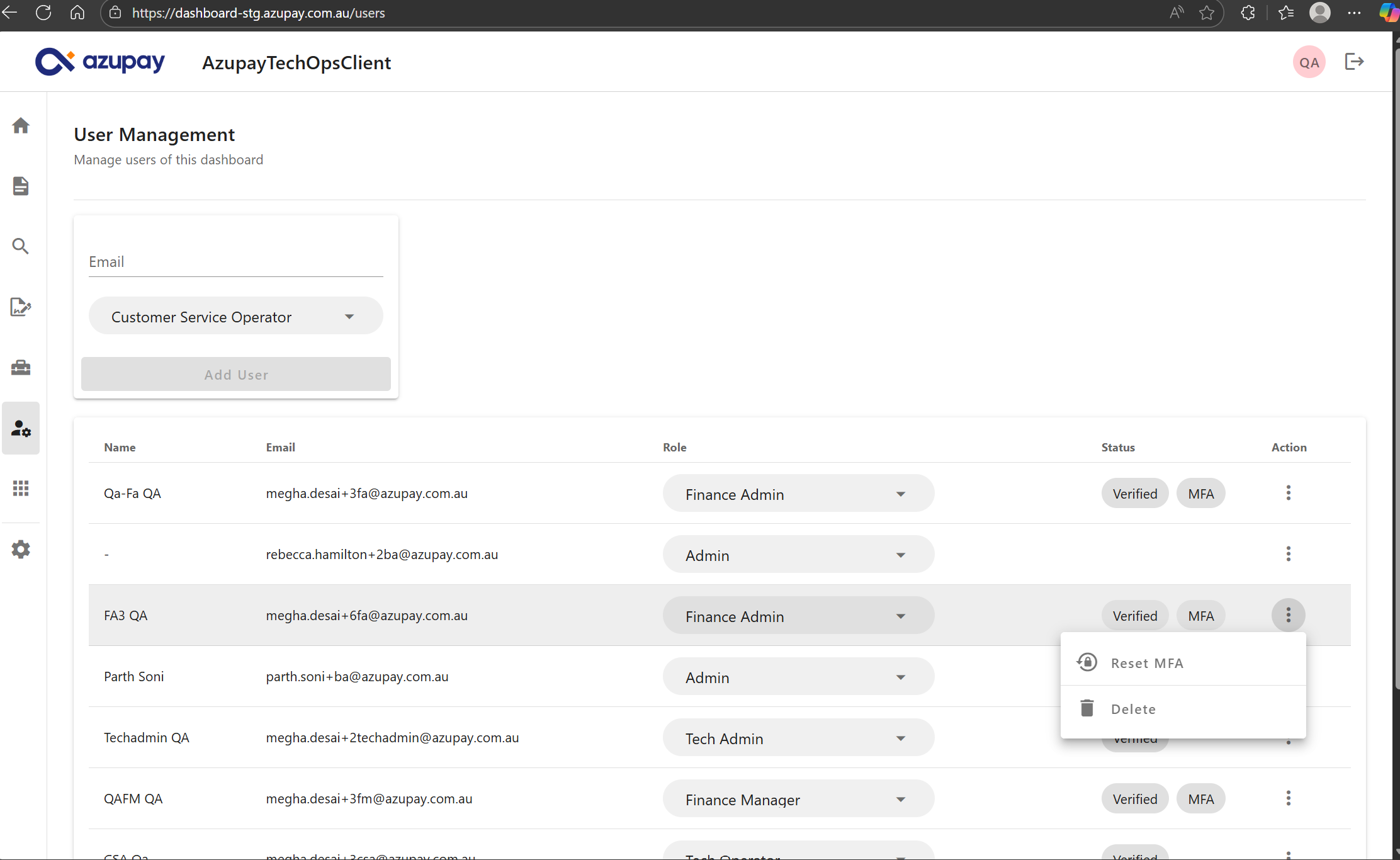
The Azupay client dashboard displays MFA status for all users within a client account setup that have successfully enrolled an MFA device.
To begin an MFA device reset for users:
- An Admin user for your client account selects a user (e.g., Tech Operator) within the same client account who has MFA cpnfigured
- The Admin user clicks Reset MFA for the selected user. The user’s MFA configuration is immediately cleared.
- On their next login attempt, they must re-enrol their TOTP authenticator app in accordance with the client’s MFA policy.
- After successful enrolment, the user may proceed to authenticate and access the Dashboard.
Notes:
Admins cannot reset MFA for other Admins; such cases require Azupay Service Desk intervention.
MFA Reset Permissions & Account Hierarchy Rules
Admins may only reset MFA for users within their own client account.
The parent-account Admin user can view account information but cannot perform MFA resets for users belonging to the child account.
MFA reset authority is isolated at the client account level to maintain proper separation of control and prevent cross-account administrative actions.
Updated 9 months ago