
Viewing PayTo agreements
PayTo agreement data includes the Payment Agreements that have been arranged with your customers. A Payment Agreement is the agreement between your business and your customer that allows eligible payments to be collected from the customer’s nominated PayID or bank account details using PayTo.
You can access PayTo agreement data as follows:
- Log in to the Azupay Dashboard.
- Navigate to the Payment Agreements view in the navigation bar.
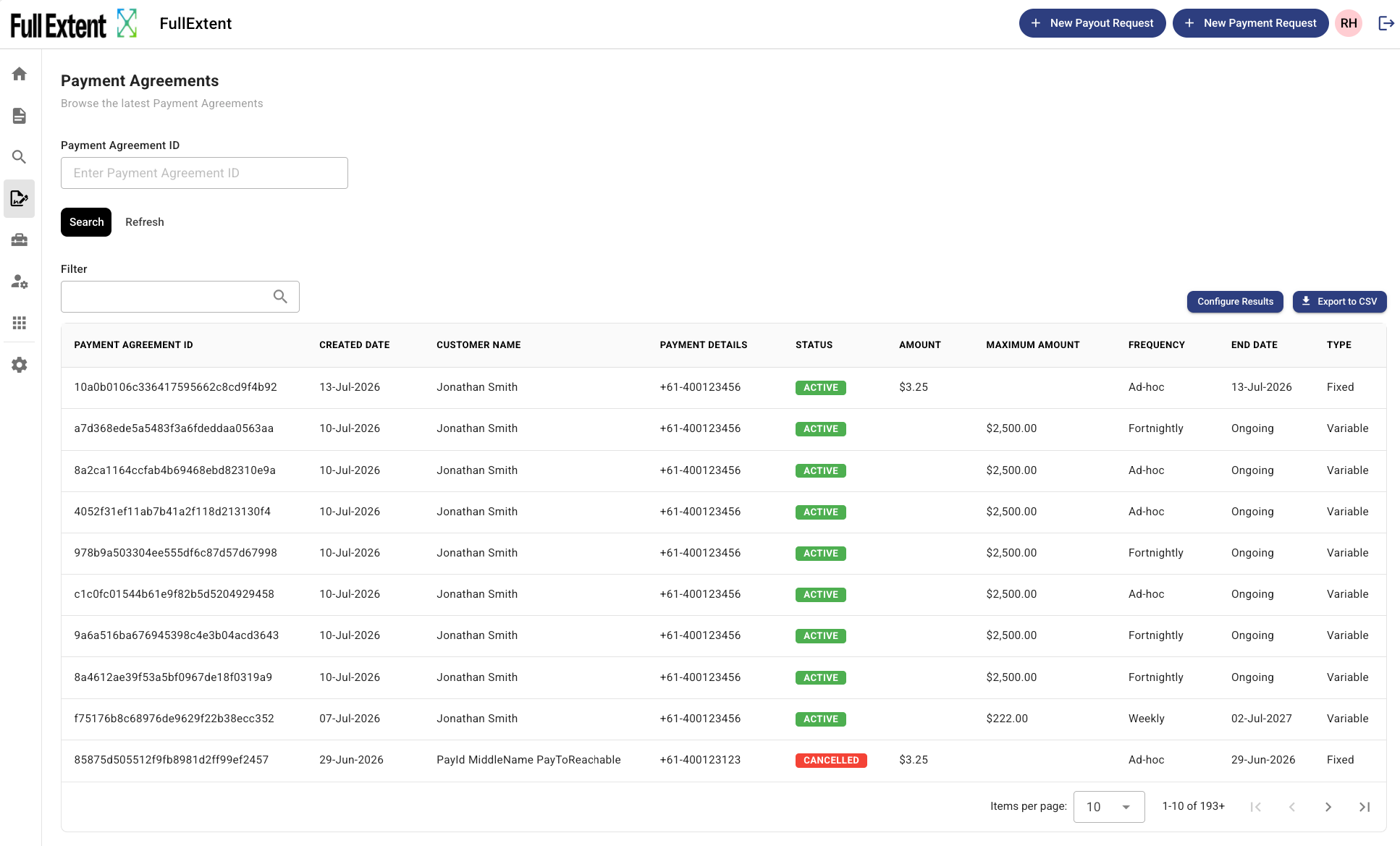
- The page will display your latest PayTo agreements, including agreements with an ACTIVE or CANCELLED status.
- Use the available page controls to refresh, filter, load, and move through Payment Agreement records.
The table displays a summary of each Payment Agreement so that you can quickly identify the customer, payment details, agreement status, amount settings, payment frequency, end date, and agreement type.
Viewing agreement and payment history details
Select the expand arrow at the end of a Payment Agreement row to reveal further detail about that agreement, split into two panels: Agreement (or Schedule, once one is configured for the agreement) and most recent Payment History.
Agreement
Until a Payment Schedule has been configured for the agreement, this panel shows the core terms of the agreement:
| Field | Description |
|---|---|
| Agreement ID | The same identifier shown in the Payment Agreement ID column. |
| Amount | The recurring payment amount for a fixed agreement, or a dash for variable agreements. |
| Maximum amount | The maximum amount that can be withdrawn under a variable agreement. |
| Created | The date the Payment Agreement was created in Azupay. |
| Schedule | Shows "No schedule" until a Payment Schedule is configured for this agreement. |

Expanded view of a Payment Agreement
Payment history
This panel lists the 3 most recent payment attempts that have been initiated against the agreement, most recent first. Payments initiated directly via the Payment Initiation API and payments initiated automatically by a configured Payment Schedule are displayed alongside each other in the same list. Each entry shows:
- a status indicator - Successful, Failed, or Pending;
- the payment amount;
- the date the payment was attempted.
Use this panel to confirm whether a scheduled or manually initiated payment against the agreement went through. For full transaction-level detail on an individual payment, find the matching entry on the Payment Initiations transactions page.

Schedule
Once a Payment Schedule has been configured to automatically initiate payments under the agreement, this panel replaces the Agreement panel with the schedule's current state:
| Field | Description |
|---|---|
| Status | Whether the schedule is Active or Inactive. |
| Cadence | How often the schedule runs and its anchor date, for example "Monthly, on the 8th". |
| Amount | The amount initiated on each scheduled run. |
| Last run | The date of the schedule's most recent run. |
| Created | The date the schedule was created. |
| Last updated | The date the schedule was last amended, for example if its amount or status was changed. |

Expanded view of a Payment Agreement with recent payments
To create, retrieve, or amend a schedule for an agreement, see the PaymentSchedule API guide.
Configuring Payment Agreement display information
The Payment Agreements page includes a 'Configure Results' button. Use this to specify which columns you want to see displayed in the search results. Any columns selected will be included in the Export feature.
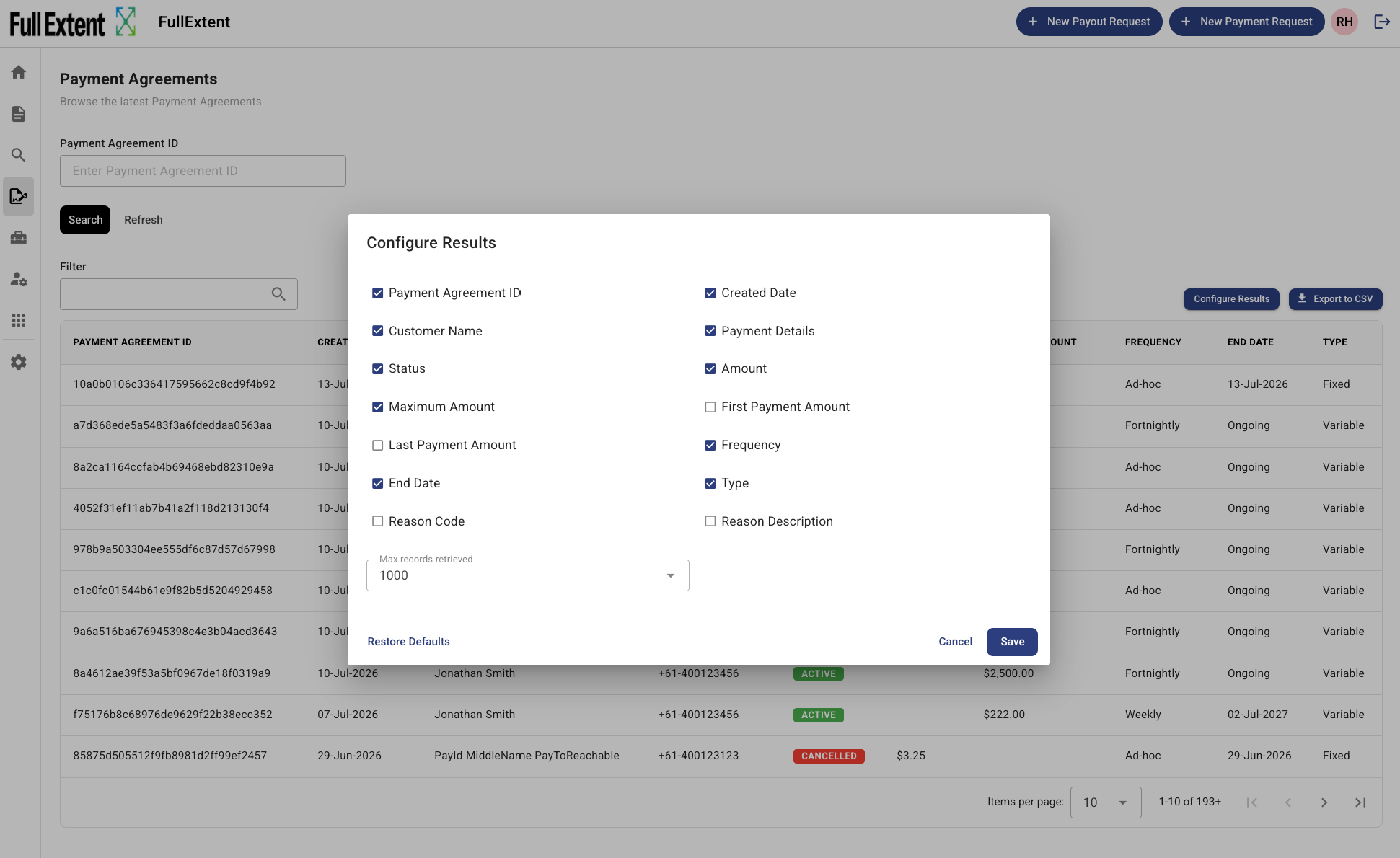
Selecting the columns to display
Select Configure Results to open the configuration window. The window lists the available Payment Agreement fields as checkboxes. Select a checkbox to show a column, or clear a checkbox to hide it.
The fields you can select for display in the Payment Agreements table are as follows:
| Field | Description |
|---|---|
| Payment Agreement ID | An identifier generated by Azupay. It is a unique identifier assigned to the PayTo agreement and is used to reference the agreement in subsequent operations. |
| Created Date | The date the Payment Agreement was created in Azupay. |
| Customer Name | The name of the customer or payer associated with the Payment Agreement. This is based on the payer details supplied when the agreement was created. |
| Payment Details | The customer payment identifier associated with the agreement. This may be a PayID, such as a phone number or email address, or bank account details, depending on how the customer's payer details were supplied. |
| Status | The current status of the Payment Agreement. ACTIVE means the agreement is active and ready for eligible payments. CANCELLED means the agreement has been cancelled and should not be used for future payment initiations. |
| Amount | The recurring payment amount for a fixed Payment Agreement. For variable agreements, this field may be blank or show a dash because the payment amount can vary. |
| Maximum Amount | The maximum amount that can be withdrawn under a variable Payment Agreement. Payment initiations must not exceed the maximum amount specified in the agreement. |
| First Payment Amount | The initial payment amount associated with the agreement, where applicable. |
| Last Payment Amount | The final payment amount associated with the agreement, where applicable. This field may show a dash if no separate last payment amount was supplied or if it is not relevant to the agreement type. |
| Frequency | How often payments may be initiated under the agreement, for example Daily, Weekly, Fortnightly, Monthly, Annual, or Ad-hoc. The payment frequency forms part of the agreement terms. |
| End Date | The date the Payment Agreement ends. If the agreement does not have an end date, the dashboard may display this as Ongoing. |
| Type | The type of Payment Agreement, such as Fixed or Variable. Fixed agreements use a set recurring amount. Variable agreements allow payment amounts to vary up to the configured maximum amount. |
| Reason Code | A code that explains why an agreement that was previously active or created has been cancelled. |
| Reason Description | A readable description that accompanies the Reason Code and explains why the agreement reached its current status, for example that the account has been closed and the agreement is no longer valid. |
Setting the maximum records retrieved
In the configuration window you can also set the maximum number of Payment Agreement records retrieved for the page. The page uses this setting together with the pagination controls to load results, so you can move through all matching records using the page numbers rather than selecting a Load more button.
Saving your configuration
Select Save to apply your changes. The Payment Agreements table updates to show only the columns you selected, and your configuration is saved for future visits in the same way as other dashboard transaction tables.
Restoring the default columns
Select Restore Defaults to return the Payment Agreements table to its default set of columns. The default view:
- shows Payment Agreement ID as the first column;
- does not include First Payment Amount or Last Payment Amount.
Exporting Payment Agreement records
Use the Export to CSV button to download the Payment Agreement records currently shown on the page. The export includes the current data set together with the columns you have configured, so the downloaded CSV file matches what is displayed.
Agreement statuses
The main statuses shown on this page are:
| Status | Description |
|---|---|
| ACTIVE | The customer has authorised the Payment Agreement and it can be used for eligible PayTo payment initiations, provided the payments are within the agreement terms. |
| CANCELLED | The Payment Agreement has been cancelled. Cancelled agreements should not be used to initiate further payments. |
Only active agreements should be used when initiating PayTo payments. Before initiating a payment, confirm the agreement is active and that the payment amount, frequency, and payment type match the terms approved by the customer.
Refreshing Payment agreement records
Use the Refresh button to reload the Payment Agreements page and redisplay the latest available agreement data.
This is useful when:
- a customer has recently approved or cancelled an agreement;
- you have recently created a new agreement;
- you want to confirm the latest status before initiating a payment;
- the page has been open for some time and you want to reload the current data.
After the page reloads, the Payment Agreement records will be displayed again using the latest available data.
Filtering Payment agreement records
Use the Filter field to search the Payment Agreement records shown on the page.
To filter records:
- Click into the Filter text box.
- Type the text you want to search for.
- The page will display Payment Agreement records that match the string entered.
You can use the filter to help locate agreements by visible table values such as customer name, payment details, status, amount, frequency, end date, or agreement type.
Pagination
Use the pagination controls at the bottom of the page to move through Payment Agreement records.
The pagination controls allow you to:
| Control | Description |
|---|---|
| Next page arrow | Moves to the next page of Payment Agreement records. |
| Previous page arrow | Moves back to the previous page of Payment Agreement records. |
| Last page double arrow | Moves to the last page of available Payment Agreement records. |
| First page double arrow | Moves back to the first page of Payment Agreement records. |
Pagination is useful when your selected Items per page setting does not show all records on one page.
Updated about 2 months ago