Cashback campaigns
Reward your customers with cashback when they pay you by bank. Set the reward, the minimum qualifying payment, when the reward arrives, and a budget cap.
A cashback campaign rewards your customers for paying you directly from their bank account. When a payment qualifies, Azupay refunds the cashback amount against that payment, so the money returns to the account the customer paid from. Your campaign budget covers the cost.
You set the campaign up yourself in the Azupay Dashboard, and you can turn it on or off whenever you like.
Payment Campaign
Why it matters
Cashback gives customers a reason to choose paying by bank over other payment methods. Because you control the reward, the qualifying payment size, and the total budget, you can run an incentive with a known maximum cost.
Typical reasons to run a campaign:
- encourage customers to try paying by bank for the first time
- shift customers away from more expensive payment methods
- reward larger payments by setting a minimum qualifying amount
- run a time-boxed promotion by turning the campaign on and off
Before you begin
Campaigns appears in the left-hand menu of the Dashboard only for users whose role includes campaign access.
| Role | Can manage campaigns |
|---|---|
| Finance Admin | Yes |
| Tech Admin | No |
| Finance Manager | No |
| Finance Operator | No |
| Tech Operator | No |
| Customer Service Operator | No |
If you cannot see Campaigns in the menu, ask an administrator on your account to review your role. See User roles reference for what each role can do.
You can run one cashback campaign at a time. There is no need to create a new campaign for each promotion — edit the existing one, or set its status to Inactive when the promotion ends.
At a glance
| Setting | What it controls |
|---|---|
| Campaign status | Whether the campaign is live and rewarding payments |
| Payment methods | Which payment methods qualify for cashback: PayID, PayTo, or both |
| Cashback amount | The reward a qualifying payment earns |
| Minimum payment amount | How much a customer must pay to earn anything |
| Reward timing | Whether the reward is sent straight away or after a delay |
| Campaign budget | The most the campaign can ever pay out |
| Remaining balance | How much budget is left, and how much has already been paid out |
| Purchase amount | The example payment the preview is based on |
All amounts are in Australian dollars.
Setting up a campaign
- Log in to the Azupay Dashboard.
- Select Campaigns in the left-hand menu.
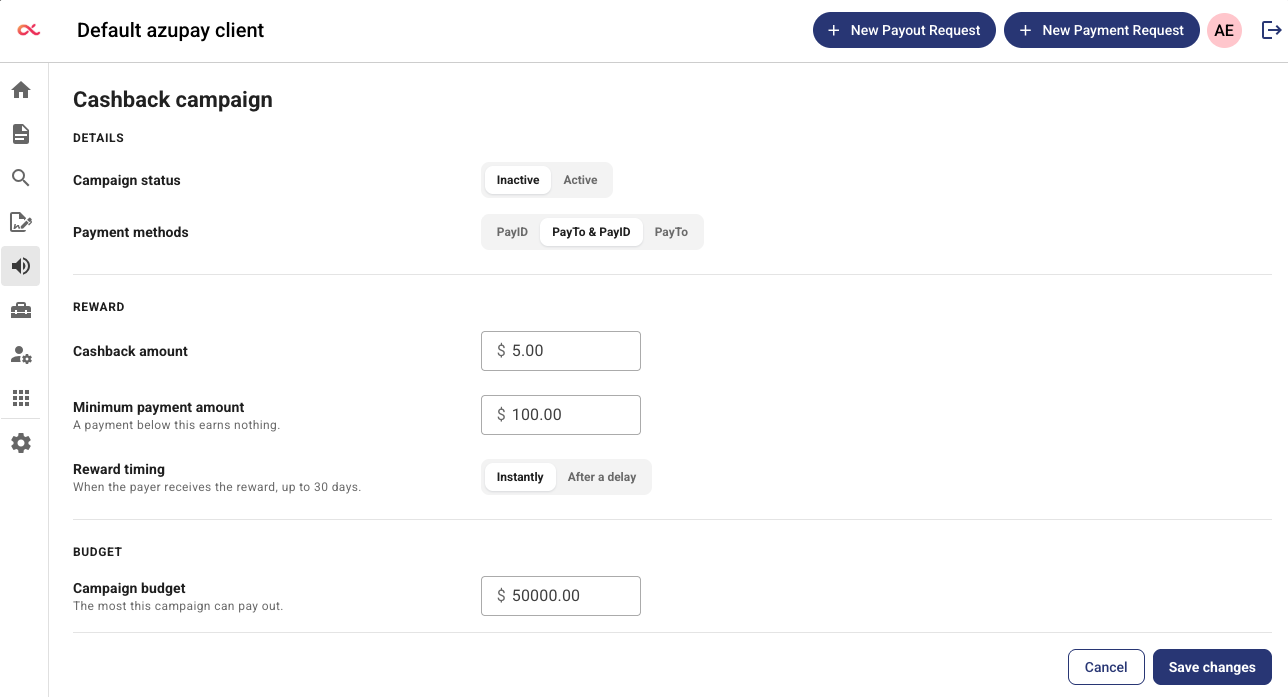
- Set your Cashback amount, Minimum payment amount, Reward timing and Campaign budget.
- Choose which Payment methods qualify.
- Check the Preview to see how the offer looks to a payer.
- Set Campaign status to Active when you are ready to start rewarding payments.
- Select Save changes.
The first time you open the screen it is pre-filled with starting values — Inactive status, both PayTo and PayID, a $5.00 cashback on payments of $100.00 or more, paid instantly, with a $50,000.00 budget. Adjust these to suit your promotion before saving.
A campaign only rewards payments while its status is Active. Saving an Inactive campaign stores your settings without rewarding anyone, which is useful for preparing a promotion ahead of time.
Campaign settings
Campaign status
Controls whether the campaign is running.
Active
- qualifying payments earn cashback from now on
- the status is shown next to the page title so you can confirm it at a glance
Inactive
- no new payments qualify
- your settings are kept, so you can switch the campaign back on later
What to expect
- changing the status takes effect as soon as you save
- rewards already promised to a customer are still paid, even after you switch the campaign off
Payment methods
Choose which payment methods earn cashback.
PayID
- only payments made using PayID qualify
PayTo
- only payments made using PayTo qualify
PayTo & PayID
- payments made using either method qualify
What to expect
- the customer only sees a cashback offer when the method they are paying with qualifies
- the reward and the way it is paid are the same for both methods
- at least one payment method is always selected
Cashback amount
The reward a customer earns on a qualifying payment. This is a set amount, not a percentage.
What to expect
- every qualifying payment earns the same amount
- the most you can set is $9,999.99
- the cashback amount cannot be greater than the minimum payment amount, so a campaign can never pay out more than the payment that earned it
Minimum payment amount
How much a customer must pay before they earn anything. A payment below this amount earns no cashback.
What to expect
- a payment exactly equal to the minimum does earn the reward
- a payment below the minimum earns nothing, and the customer is not shown a cashback offer
- the most you can set is $999,999.99
How to use it
- set it higher to reward only larger payments and keep the cost per reward proportionate
- set it lower to reward more customers from the same budget
Reward timing
When the customer receives their cashback after paying.
Instantly
- the reward is sent as soon as the payment completes
After a delay
- the reward is sent after a delay you choose, set in hours or days
- you can set a delay of 1 to 720 hours, or 1 to 30 days
What to expect
- the customer is told when to expect their reward as part of the payment confirmation
- a delay gives you a window in which a disputed or refunded payment can be picked up before the reward is sent
Campaign budget and remaining balance
Campaign budget is the most the campaign can ever pay out, and it is the cap on your total cost.
Remaining balance is read-only. It shows how much budget is still available, and how much has already been paid out.
What to expect
- the most you can set is $999,999.99
- when the remaining balance is too low to cover another reward, customers stop being offered cashback
- increasing the budget increases the remaining balance by the difference and resumes the campaign — the amount already paid out is unaffected
- you cannot reduce the budget below what the campaign has already paid out
How to use it
- treat the budget as the total cost of the promotion, not a monthly allowance
- top the campaign up by increasing the budget when the remaining balance runs low
Previewing the payer experience
The Preview panel on the Campaigns screen shows your campaign the way a payer sees it. It updates as you change the settings, so you can check the offer before you save.
Use the drop-down at the top of the panel to choose which screen to preview.
Landing
The checkout screen where the payer chooses how to pay.
What to expect
- a cashback badge sits above each payment method that qualifies
- the badge reads $5 Instant Cashback when the reward is paid instantly, and $5 Cashback when you have set a delay
- a payment method that does not qualify shows no badge
Confirmation
The screen the payer sees after their payment succeeds.
What to expect
- a badge confirms the reward and the method that earned it, for example $5 cashback earned with PayTo
- below it, the payer is told the reward is on its way to the account they paid from
- the payment summary lists the cashback as a separate +$5.00 line under the amount paid
Purchase amount sets the example payment the preview is based on. It starts at $500.00. Change it to see what a payer is shown just above and just below your minimum payment amount.
What the preview does and does not do
- The preview is an example only. It creates no payment, charges nothing and rewards no one.
- A payment method only shows a badge when the campaign is Active, the method qualifies, the purchase amount is at or above your minimum payment amount, and the remaining balance covers the reward.
- The message above the preview tells you what you are looking at — your saved campaign, unsaved changes you have not published yet, or values you need to correct before the preview can be shown.
- If the preview cannot be loaded, your campaign settings are not affected.
What to expect
How customers see it
A qualifying customer sees a cashback offer during checkout, and their payment confirmation tells them the reward is on its way to the account they paid from.
The reward arrives as a refund of their payment, credited to the account they paid from and described as Cashback - Thanks for choosing Pay by Bank on their statement.
When rewards are paid
Instantly means shortly after the payment, not the same second. Rewards are sent in the background, so an instant reward typically reaches the customer about a minute after their payment completes. Delayed rewards are sent after the delay you set.
How the reward reaches the customer
A reward is issued as a refund of the qualifying payment, for the cashback amount only.
- The money returns through the payment method the customer used, to the account they paid from. There is nothing for them to claim or nominate.
- The reward appears in that payment's history in Transactions, as a return with its own NPP transaction ID.
- The reward reduces the amount you can still refund on that payment. A $100.00 payment that earned a $5.00 reward leaves $95.00 refundable.
- You can still refund the rest of the payment as usual. A reward never blocks a later refund.
Changes only apply going forward
- Only a customer who was shown a cashback offer during checkout earns a reward. Turning a campaign on, or widening it to another payment method, does not reward payments that were already in progress.
- Once a reward has been promised to a customer, the amount and timing they were shown are honoured. Later edits to the campaign, including switching it off, do not change or cancel a reward already earned.
- Payment requests that accept multiple payments never earn cashback.
When cashback is withheld
A reward is committed against your budget when it is earned, and sent when it falls due. If something about the payment has changed by the time the reward is due to be sent, the reward is withheld and the amount is returned to your campaign budget.
| Situation | What happens |
|---|---|
| The payment is no longer complete | The reward is withheld and returned to your budget |
| The payment has been refunded, in full or in part | The reward is withheld and returned to your budget |
| A refund has been requested but not yet processed | The reward is withheld and returned to your budget |
| The reward payment fails or is returned by the bank | The reward is withheld and returned to your budget |
Withheld rewards do not cost you anything. The amount goes back into your remaining balance and is available for the next qualifying payment.
Saving changes
- While you have unsaved edits, the screen shows an Unsaved changes label.
- Cancel discards your edits and restores the saved settings.
- If you navigate away with unsaved edits, you are asked whether to leave without saving.
- A successful save is confirmed with Cashback campaign updated, and the status next to the page title updates to match.
If two people edit the campaign at the same time, only the first save succeeds. The second person is asked to try again — reload the page to pick up the latest settings before re-applying your changes.
Frequently asked questions
Can I run more than one cashback campaign?
No. Each account has a single cashback campaign. To change a promotion, edit the existing campaign, or set it to Inactive when the promotion ends.
Does a payment exactly equal to the minimum earn cashback?
Yes. The minimum payment amount is inclusive, so a payment equal to the minimum earns the reward. Only payments below the minimum earn nothing.
What happens when the budget runs out?
Customers stop being offered cashback once the remaining balance is too low to cover another reward, and payments in progress stop earning rewards. Increase the campaign budget to resume the campaign.
Can I reduce my campaign budget?
You can reduce it, but not below the amount the campaign has already paid out. The screen tells you the lowest budget you can set.
What happens to cashback if I refund a payment?
If the reward has not been sent yet, it is withheld and the amount returns to your campaign budget. A refund requested against the payment is enough to withhold the reward, even if the refund has not been processed. Rewards that have already reached the customer are not reversed — the payment's refundable balance is already reduced by the reward amount.
Can I still refund a payment that earned cashback?
Yes. You can refund up to the remaining refundable balance, which is the payment amount less the reward already paid. The Dashboard shows the amount available when you start the refund.
Where do I see the cashback on a payment?
In the payment's history in Transactions. The reward is listed as a return for the cashback amount, with its own NPP transaction ID.
If I switch the campaign off, do customers still get their cashback?
Yes. Any reward already promised to a customer is still paid. Switching the campaign off only stops new payments from qualifying.
Where does the cashback go?
To the bank account the customer paid you from. There is nothing for the customer to claim or nominate.
Cashback campaigns work alongside the Pay by Bank App. If your campaign is Active but customers are not being offered cashback, check that the payment method they are using qualifies and that the payment is at or above your minimum payment amount. If the settings look right, contact Azupay Support.
Updated about 1 month ago