
Dynamic checkout banner
Overview
At checkout, you show your customers a list of payment options. Embedded Checkout lets you add live content from Azupay next to any Azupay payment option in that list.
It allows you to show content such as:
- Marketing: cashback, discounts and ease-of-use benefits.
- Education: what to expect and how to pay.
- Visual assets: the logos of the payment rails.
The content changes with the payment. For example, the chip can show "$5 Instant Cashback" when the amount is $500.
Benefits
- Less development: add one iframe or one script tag. You do not write offer logic.
- More payments: payers see why Azupay is a good choice before they select it.
- Always current: you set the rules in Azupay. Azupay hosts the content. When you change a rule, your checkout updates.
- Fits your page: the content has a transparent background and adapts to the size you set, so it fits the layout of your page.
What it looks like
The first image is a checkout page with Azupay content in the Pay by Bank option. The second image shows the same page with outlines on. The dashed areas are the places where the page fetches content from Azupay. The third image shows the same page when no cashback is configured.
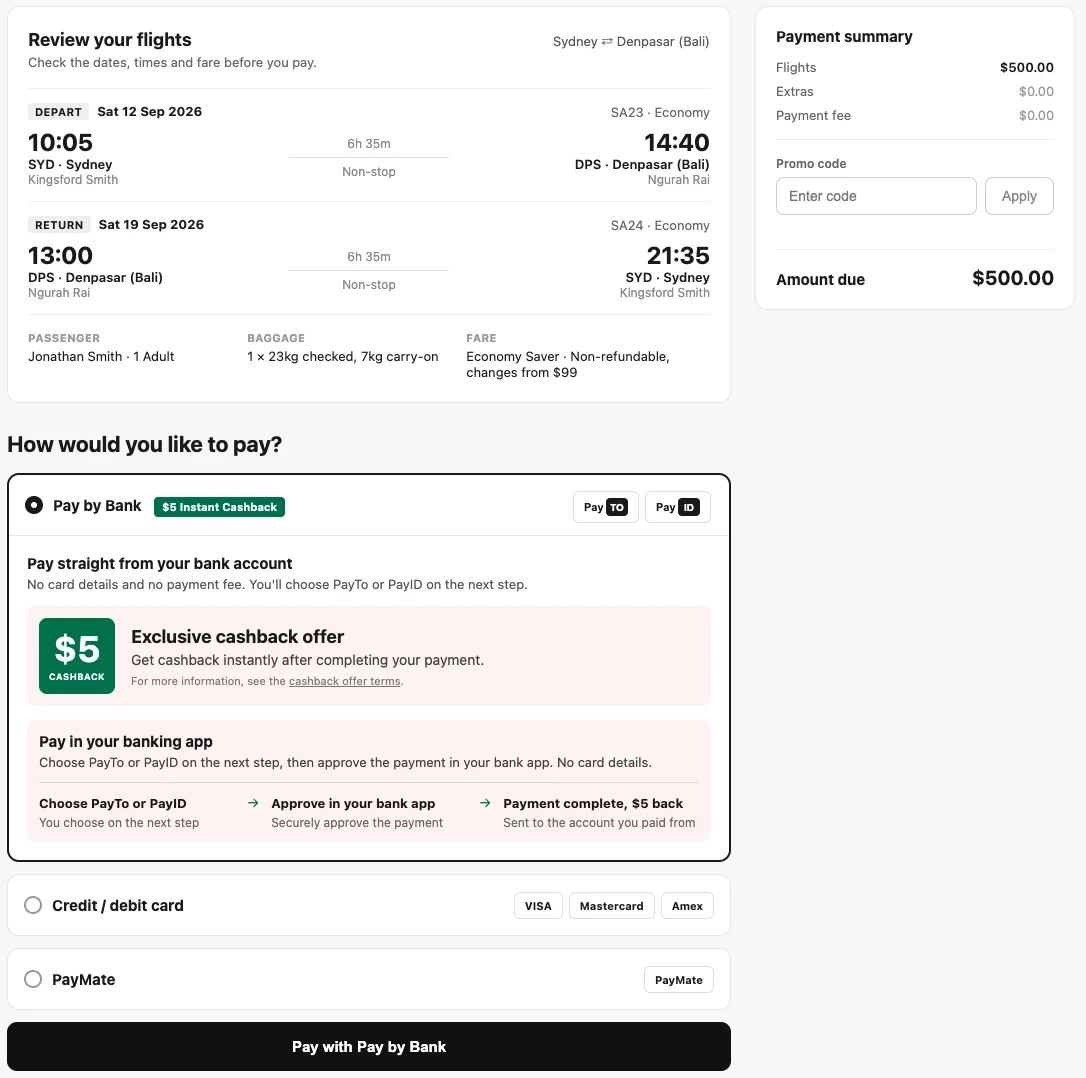
Figure 1. What the payer sees.
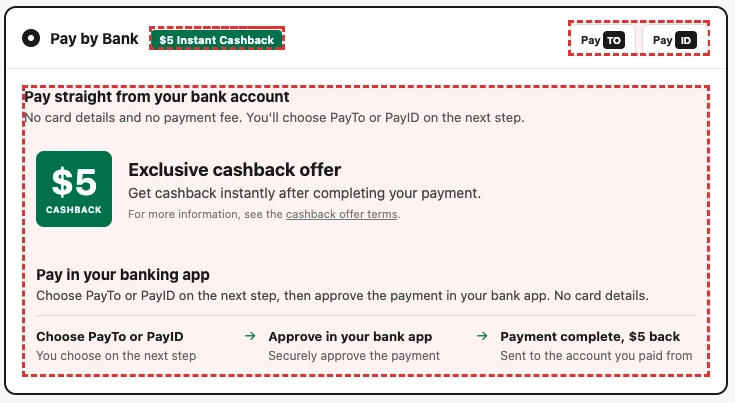
Figure 2. The dashed areas show where the content is fetched from Azupay.
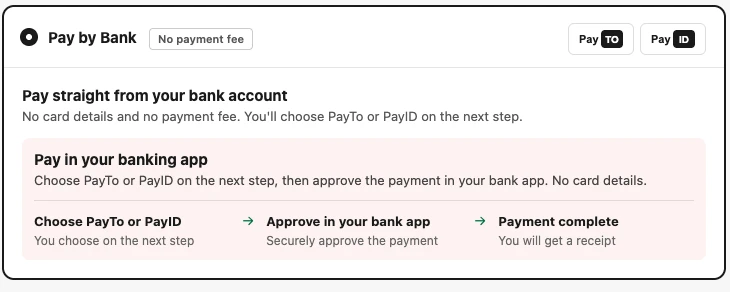
Figure 3. The cashback content does not show, and it takes no space on the page. Only the content that you configured shows.
How it works
The steps
The Checkout App is the web user interface that guides the payer through the payment.
- You configure your Checkout App and your cashback rules in the Azupay Client Portal.
- The checkout configuration in the Azupay Client Portal gives you your URLs, your merchant ID and the hash of the script.
- You add the URL to your checkout page, as the source (
src) of a script or of an iframe. You add your merchant ID and the amount of the payment as parameters of the iframe URL or as attributes of the Azupay tag. - When the payer opens the option, your page loads the URL. Azupay returns the content that matches your merchant ID, your Checkout App configuration and the amount of the payment.
Graphical assets
Azupay gives you three assets. You choose one with the type. The instructions, the promotions and the logos come from the configuration of your Checkout App in the Azupay Client Portal. You do not choose them in your page. You can choose the variant of the Checkout App with the variant parameter. If you do not set it, Azupay uses the default variant that is configured for you. To get another variant, ask Azupay support to create it.
| Asset | type | What it shows | Where it goes | Size |
|---|---|---|---|---|
| Chips | chips | A small label with one message. When a cashback campaign is active, it shows the reward, for example "$5 Instant Cashback". When no cashback applies, it shows "No payment fee". | Next to the title of the payment option. | Azupay sets the width and the height. |
| Payment rails | rails | The logos of the payment rails that the payer can use. It shows the rails that you enable in the Checkout App configuration, for example PayTo, PayID or both. | In the header of the payment option, usually at the right. | Azupay sets the width and the height. |
| Banner | banner | All the content inside the payment option: the heading and the text (for example "Pay straight from your bank account"), the cashback offer (for example "Cashback offer", only when a cashback campaign is active), and how to pay, in steps (for example "Pay in your banking app"). | Inside the payment option, when the payer opens it. | It fills the width of its container. Azupay sets the height. |
When the content changes
The content follows your configuration in the Azupay Client Portal. You do not change your checkout page.
- When you enable a campaign, the cashback content starts to show.
- When you disable a campaign, the cashback content stops.
- When the campaign budget is used, the cashback content stops.
- When you change the instructions, the promotions or the payment rails in the Checkout App, the content changes.
The cashback offer is indicative
The cashback that the payer sees is an indication. It is not a guarantee.
- Azupay checks again that the cashback is available during the transaction, when the payer pays. Azupay decides the cashback at that moment, and not when the content shows.
- The cashback can change between the moment that the payer sees it and the moment that the payer pays. For example, the campaign budget can run out.
- If the cashback changes, the payer does not get the cashback that they saw.
- Show a note near the offer, for example "Cashback is subject to availability and terms." Link to the cashback offer terms.
- Ask your legal team to check your wording, so that you do not make a misleading claim to your customers.
Get started
Get your URL
Open the Azupay Client Portal and go to the checkout configuration. It shows the script URL, the iframe URL and your merchant ID. Copy the ones that you need.
- Each environment has its own Azupay Client Portal. The Client Portal of an environment shows the URLs and the merchant ID of that environment. Use the values of the same environment as your site. Do not use a production URL on a test site.
- You do not need to build the URL. You only add the parameters: your merchant ID, the asset and the amount of the payment (see "URL" in the reference).
- The script URL ends with
.js. The iframe URL ends with.html. - The script URL is the same for every merchant of an environment. Your merchant ID tells Azupay which merchant you are. You add it to every
<azupay-content>tag and to every iframe URL. - The URLs and the merchant ID are public. It is safe to put them in your page.
- The checkout configuration also shows the hash of the script, next to the URLs. You use it to check the integrity of the script (see "Check the integrity of the script").
- You can also get the script URL and the hash from the metadata file of the environment (see "Get the script URL and the hash from the metadata file").
In the examples of this guide, {script-url} is the script URL, {iframe-url} is the iframe URL, and {merchantId} is your merchant ID.
Choose an integration
Choose the way that fits your page.
| Format | Use it when |
|---|---|
.js (JavaScript) | You want the simplest integration. You add one script and one <azupay-content> tag for each asset. Azupay places the content in your page and sets its size for you. This is the recommended way. |
.html (iframe) | You want more control over how the iframe is displayed. You add an <iframe> and you need no script. |
JavaScript (.js) | iframe (.html) | |
|---|---|---|
| What you add | One script tag and one <azupay-content> tag for each asset. | One <iframe> tag for each asset. |
| Best for | The simplest option. You add one script and one tag for each asset. Azupay sets the size for you. It also suits single-page checkouts. | When you want more control over how the iframe is displayed (for example its size, its place and its style). |
| Change to your CSP | script-src and frame-src | frame-src |
| Height | Azupay sets it. You do nothing. | You set it (see the minimum sizes). You can add a small listener to fit the content. |
| Width | Chips and rails: Azupay sets it, so they take only the space that they need. Banner: it fills the container. You can set a max-width. | You set it. Use 100% for the banner, and a fixed width for the chips and the rails. A listener can set it from the content. |
| When there is no content | Nothing shows. No empty space. | Empty space stays, unless you add the listener. Then it collapses. |
| When the order amount changes | Change the tag attribute. No reload. | You change the iframe URL. |
| Security | The logic runs inside an iframe, which isolates it from your page. In addition, the script is open source, and you can check its integrity. | The logic runs inside an iframe, which isolates it from your page. |
Integrate with JavaScript
Use this way when you want the simplest integration. Azupay places the content in your page and sets its size for you. You load one script, and then you add one <azupay-content> tag for each asset.
Load the script
The script tag follows these rules:
- Use
asyncordefer. Do not use a script tag with neither. Without them, a slow script slows your checkout page. With them, a slow or blocked script does not stop your page. - With
async, the tag works whichever loads first, the script or the tag. - Use a classic script tag. Do not use
type="module". - Optional: add
<link rel="preconnect" href="https://{azupay-domain}">to the page head. The content then shows sooner.
Add the tags
Load the script once. Then add an <azupay-content> tag where each asset must show. This works for every checkout, including a single-page checkout. {script-url} is the script URL.
<script async src="{script-url}"></script>

<azupay-content type="chips" amount="500.00" merchantId="{merchantId}"></azupay-content>
<azupay-content type="rails" merchantId="{merchantId}" variant="1Click"></azupay-content>
<azupay-content type="banner" amount="500.00" merchantId="{merchantId}"></azupay-content>
The attributes are in "Tag attributes" in the reference. Every tag needs your merchantId. Attribute names in HTML do not depend on upper or lower case, so you can write merchantId or merchantid. To use a variant of the Checkout App that is not the default, add the variant attribute, for example variant="{variant}". Azupay support gives you the value.
- The tag can be on the page before or after the script. It works in both cases.
- A tag with no
merchantIdshows nothing. The browser console shows a warning. - The tag sets its own height. Do not set a height.
- The chips and the rails set their own width, so they take only the space that they need in a row. Do not set a width on them. Azupay replaces it.
- The banner fills the width of its container. You can set a
max-widthon the tag. - When there is no content, the tag takes no space. Your own
marginorwidthon the tag does not move the layout. - Your page styles do not reach the content inside the tag.
- The tag adds the iframe with the sandbox values
allow-scripts allow-same-origin allow-popups allow-popups-to-escape-sandbox. You do not set them. - The tag works in current Chrome, Edge, Firefox and Safari. In an older browser, nothing shows, and your checkout still works.
Update the content
To change the content when the order changes, change an attribute. In a framework, change it in your template. In plain JavaScript:
document.querySelector('azupay-content[type="banner"]').setAttribute('amount', '750.00')Integrate with an iframe
Use this way when you want more control over how the iframe is displayed. You add one iframe for each asset, and you need no script.
Add the iframe
Add the iframe where the asset must show. {iframe-url} is the iframe URL. Add your merchant ID and the parameters of the payment to it. Use the amount of the current order. Azupay shows the content that matches it. To use a variant of the Checkout App that is not the default, add &variant={variant} to the URL. Azupay support gives you the value.
<iframe
  src="{iframe-url}?type=banner&amount=500.00&merchantId={merchantId}"
  title="Azupay"
  sandbox="allow-scripts allow-same-origin allow-popups allow-popups-to-escape-sandbox"
  style="border:0;width:100%;height:300px">
</iframe>
The height in this example is a start value. The height of the banner depends on its width, so add the listener below to set the real height. For the chips and the rails, use the heights in "Minimum sizes".
If your style-src does not allow inline styles, put these styles in a class in your style sheet, and add the class to the iframe. A style attribute in the markup is blocked by that policy.
Set the sandbox attribute
The examples have a sandbox attribute. It limits what the iframe can do, and it adds to the isolation from your page. If you use it, set these four values:
| Value | Why the content needs it |
|---|---|
allow-scripts | The content page runs its own script to get and show the content. Without it, nothing shows. |
allow-same-origin | The content page keeps its own Azupay origin. It needs it to get your content from Azupay. Without it, the content does not load, and the size event has error set to true. |
allow-popups | Links in the content, such as the cashback offer terms, open in a new tab. Without it, the links do not open. |
allow-popups-to-escape-sandbox | The new tab that a link opens does not keep the sandbox of the iframe. The page in the new tab, such as the cashback offer terms, then works as a normal page. Without it, the new tab has the same limits as the iframe, and the page in it can fail to work. |
- Do not add other values. The content does not need them.
- The
sandboxattribute is optional. If you leave it out, the content works. - The iframe is on the Azupay domain, and your page is on a different origin. The iframe cannot read your page, and your page cannot read the iframe, also with
allow-same-origin. The browser console can show a warning aboutallow-scriptstogether withallow-same-origin. You can ignore it. allow-popups-to-escape-sandboxdoes not give the iframe more access to your page. It applies only to the new tab that a link in the Azupay content opens.- With the
.jsformat, the tag adds the iframe and sets these four values for you. You do nothing.
Fit the iframe to the content (recommended)
The iframe page raises a size event. The event tells your page the size that the content needs. If you do nothing, the iframe keeps the size that you set. To fit the iframe to the content, and to remove the space when there is no content, add a listener. Give the iframe an id:
<iframe
  id="azupay-banner-frame"
  src="{iframe-url}?type=banner&amount=500.00&merchantId={merchantId}"
  title="Azupay"
  sandbox="allow-scripts allow-same-origin allow-popups allow-popups-to-escape-sandbox"
  style="border:0;width:100%;height:300px">
</iframe>window.addEventListener('message', function (event) {
var frame = document.getElementById('azupay-banner-frame')
var data = event.data
if (event.source !== frame.contentWindow) return
if (!data || data.source !== 'azupay-content' || data.type !== 'size') return
frame.style.height = data.empty ? '0' : data.height + 'px'
})The fields of the event are in "Size event" in the reference.
For the chips and the rails, also set the width in the listener:
frame.style.width = data.empty ? '0' : data.width + 'px'Give the iframe a starting width that is at least the minimum width for the asset (see "Minimum sizes"), so that the content can show its full width. The row can move once, when the first event arrives.
The listener is your own code. The event has no payer data. Check that the event comes from your iframe, as the example does.
Design and sizing
Match your page design
- You cannot change the fonts, the colours or other branding of the content in this version. The content uses the Azupay design.
- The iframe content has a transparent background. Your page colour shows around it, for example around the rounded corners of a chip.
- Do not set a background on the
<iframe>element. - With
.html, set the iframewidthto100%for the banner. You can add amax-width. - With
.html, the chips and the rails in a row need a fixed width. Use the minimum width below, or more. A narrower iframe cuts the content off. A wider iframe leaves a gap. To fit the width to the content, add the listener from "Fit the iframe to the content (recommended)". - With
.html, set the iframeheightfor the chips and the rails to the height below, or more. Extra height shows as empty space under the content. To remove it, add the listener. - With
.html, the height of the banner depends on its width, because the text wraps. Add the listener to set the height from the event. - With
.js, you do not set the height. The script sets it. It also sets the width of the chips and the rails. - The content adapts to the size you set. If the iframe is smaller than the minimum, the content can be cut off.
Minimum sizes
| Asset | Minimum width | Height |
|---|---|---|
| Chips | 160 px | 30 px |
| Payment rails | 150 px | 40 px |
| Banner | 300 px | Depends on the width. Use the listener, or .js. |
Security and compliance
Content Security Policy (CSP)
If your site uses a Content Security Policy, add the Azupay domain to the directives for the approach you use. The Azupay domain is the domain of your URL (see "URL" in the reference). If you use more than one environment, add the domain of each one. Add only the directives that your approach needs. This table is for a policy that uses a list of hosts. If your policy uses a nonce and strict-dynamic, see "Strict policies (nonce or strict-dynamic)".
| Approach | Directives to add | Why |
|---|---|---|
iframe (.html) | frame-src https://{azupay-domain} | Your page loads the iframe. |
JavaScript (.js) | script-src https://{azupay-domain} frame-src https://{azupay-domain} | Your page loads the script. The script adds an iframe. |
Example for a site that uses the iframe:
Content-Security-Policy: default-src 'self'; frame-src 'self' https://{azupay-domain}- Azupay does not need
unsafe-inlineorunsafe-evalfor any approach. The script does not add inline scripts or inline styles in a current browser. - The content inside the iframe follows the Azupay policy, not yours.
- If your policy has no
frame-src, the browser useschild-src, and thendefault-src. The same fallback applies to the other directives.
Strict policies (nonce or strict-dynamic)
If your policy uses a nonce and strict-dynamic, the browser ignores the list of hosts in script-src. It runs only the scripts that have your nonce. Do this:
- Add your nonce to the Azupay script tag.
- Do not add the Azupay domain to
script-src. The browser ignores it. - Add the Azupay domain to
frame-src.strict-dynamicdoes not changeframe-src.
<script async nonce="{nonce}" src="{script-url}"></script>Content-Security-Policy: script-src 'nonce-{nonce}' 'strict-dynamic'; frame-src https://{azupay-domain}- Make a new nonce for each response. Do not use the same nonce twice.
- Your own listener script (see "Fit the iframe to the content (recommended)") also needs your nonce.
- You can use the nonce and the
integrityattribute together. - With the iframe approach (
.html), you do not load a script from Azupay, so you only needframe-src.
Check the integrity of the script
The Azupay script is small and stable. Its only job is to load the iframe and pass the events (such as the size of the content) to your page. The content, the rules and the design are in the iframe, not in the script. So the content can change at any time, and the script stays the same.
Because the script is stable, you can check its integrity with Subresource Integrity (SRI). The browser calculates the hash of the script file. If it does not match the hash that you give, the browser does not run the script.
- Get the hash of the script from the checkout configuration in the Azupay Client Portal. It is next to your URLs. You can also get it from the metadata file (see "Get the script URL and the hash from the metadata file").
- Add the hash to the
integrityattribute of your script tag. Also addcrossorigin="anonymous".
<script async
  src="{script-url}"
  integrity="sha384-{hash}"
crossorigin="anonymous"></script>- The script file is the same for every merchant, so the script URL and the hash are the same too.
- A script URL and its hash do not change. The content of the script does not change either. Azupay does not replace a script that you already use.
- If Azupay must change the script, it adds a new version. The new version has a new URL (the
{hash-part}of the file name changes) and a new hash. The Azupay Client Portal shows them next to the old ones. The old version stays available. - To move to a new version, change the script URL and the
integrityvalue in your page, at the time that suits you. - If the hash in your page does not match the script (for example, because you changed the URL and not the hash), the browser blocks the script, and nothing shows. Your checkout still works. The browser console shows an integrity error.
- The integrity check covers the script only. The iframe that the script loads runs on the Azupay domain, in a sandbox (see "Set the sandbox attribute"). It is on a different origin than your page, so your page cannot read it.
- The integrity check is one way to meet PCI DSS 4.0 requirement 6.4.3 for this script. Ask your security team or assessor which method they accept.
Get the script URL and the hash from the metadata file
Each environment has a metadata file. It gives the file name and the hash of the current version of the script, so that you can find the script URL and the hash. Read the file when you build or release your page, and put the values in your page. Do not read it when your page loads. You can get the file at this location:
https://{azupay-domain}/embed/integrity.jsonExample of the file. The values are placeholders. Your file has the real values of the current version:
{
  "file": "asset-{hash-part}.js",
  "integrity": "sha384-{base64-hash}",
  "sha384Hex": "{hex-hash}"
}| Field | Description |
|---|---|
file | The file name of the script. The script URL is https://{azupay-domain}/embed/{file}. |
integrity | The hash of the script, ready for the integrity attribute of your script tag. |
sha384Hex | The same SHA-384 hash, as hexadecimal text. Use it if your tools need the hash in this format. |
To make the script URL, put the value of file after https://{azupay-domain}/embed/.
The Azupay domain for each environment:
| Environment | {azupay-domain} |
|---|---|
| UAT | pay.uat.apps.azupay.com.au |
| Production | pay.apps.azupay.com.au |
For production, the script URL is https://pay.apps.azupay.com.au/embed/{file}, and the script tag is:
<script async
  src="https://pay.apps.azupay.com.au/embed/{file}"
  integrity="{integrity}"
crossorigin="anonymous"></script>- Read the metadata file at build time or at release time, and put the values in your page. Do not make your page read the file when it loads in the browser. If your page gets the hash from the same place as the script, the integrity check gives no protection: a changed script would come with a changed hash.
- The script file can be the same in UAT and in production. Always load the script from the environment of your site: the UAT script on your test site, and the production script on your live site.
- The metadata file shows only the current version. When Azupay adds a new version, the file shows the new file name and the new hash. The old version stays available at its URL.
- Copy the values into your page. The values in the examples are placeholders. Get the real values from the metadata file of your environment.
PCI DSS 4.0
- JavaScript: a script on a payment page is in scope for the PCI DSS 4.0 requirements for payment page scripts (6.4.3 and 11.6.1). You must list the script, give a reason for it, check its integrity, and watch for changes.
- iframe: Azupay code runs inside the iframe, not in your page. It is usually outside your script list. Ask your assessor to confirm. If you add the listener, it is your own script.
Reference
URL
You copy the URLs and your merchant ID from the checkout configuration in the Azupay Client Portal. You do not build them. There are two URLs:
Script URL:  https://{azupay-domain}/embed/asset-{hash-part}.js
Iframe URL: https://{azupay-domain}/embed/index.html?type=banner&amount=500.00&merchantId={merchantId}| Part | Description |
|---|---|
https://{azupay-domain} | The Azupay domain that hosts the content. Add it to your Content Security Policy. It is pay.uat.apps.azupay.com.au in UAT and pay.apps.azupay.com.au in production. |
/embed/asset-{hash-part}.js | The script file. {hash-part} is a short code that changes with each version of the script. It is not the integrity hash. Each version of the script has its own file name. The script URL is the same for every merchant of an environment. |
/embed/integrity.json | The metadata file. It gives the file name and the hash of the current script. See "Get the script URL and the hash from the metadata file". |
/embed/index.html | The iframe page. |
?type=banner&amount=500.00&merchantId={merchantId} | The query parameters of the iframe URL. They have the asset, the amount of the payment, your merchant ID and, if you need it, the variant. You add them (see "Query parameters"). The script URL has no parameters. For the script, you set the same values as attributes of the tag. |
Query parameters
| Name | Required | Description |
|---|---|---|
merchantId | Yes | Your merchant ID. Azupay uses it to find your configuration. The checkout configuration in the Azupay Client Portal shows it. It is public, and it is safe to put in your page. |
type | Yes | chips, rails or banner. |
amount | Depends on type | The order amount, in Australian dollars (AUD). It is text with one or more digits, a dot, and exactly two digits. It matches the pattern ^[0-9]+\.[0-9]{2}$, for example 500.00 or 0.50. Do not add a currency symbol or a thousands separator. The chips and the banner use it for the cashback. |
variant | No | The variant of the Checkout App that Azupay uses for the assets. Azupay support gives you the value. If you do not set it, Azupay uses the default variant that is configured for you. |
Tag attributes
| Attribute | Required | Description |
|---|---|---|
merchantId | Yes | Your merchant ID. It is the same value as the merchantId query parameter. The tag shows nothing if it is not set. |
type | Yes | chips, rails or banner. |
amount | Depends on type | The order amount, in Australian dollars (AUD). It has the same format as the amount query parameter: one or more digits, a dot, and exactly two digits (^[0-9]+\.[0-9]{2}$), for example 500.00. |
variant | No | The variant of the Checkout App that Azupay uses for the assets. Azupay support gives you the value. If you do not set it, Azupay uses the default variant that is configured for you. |
Size event
The iframe page raises the size event to tell your page how much space the content needs. The <azupay-content> tag handles this event for you. You use the event only when you add an iframe yourself.
| Property | Value |
|---|---|
| Name | The message event on window. The iframe page raises it with window.parent.postMessage. |
| Raised by | The Azupay iframe page (the .html format). |
| Raised to | The page that holds the iframe (the parent window). |
| Data | An object. The fields are in the table below. |
Example of event.data:
{
  "source": "azupay-content",
  "type": "size",
  "height": 30,
  "width": 134,
  "empty": false,
  "error": false
}| Field | Type | Value | Description |
|---|---|---|---|
source | string | azupay-content | Always this value. Use it to ignore messages from other senders. |
type | string | size | Always this value. It names the event. |
height | number | 0 or more | The height that the content needs, in pixels. It is 0 when empty is true. |
width | number | 0 or more | The width that the content needs, in pixels. It is 0 when empty is true. Use it for the chips and the rails, which sit in a row with other items. For the banner, the container sets the width, and you can ignore this field. |
empty | boolean | true or false | true when there is no content to show. Then the iframe can take no space. |
error | boolean | true or false | true when there is an error with the parameters passed. |
errorMessage | string | null or an error message caused by misconfiguration | When required parameters are not provided or are have an incorrect format. |
When the event is raised
- When the content has shown for the first time. This includes the case when there is no content to show.
- Each time the size of the content changes. For example, when the width of the iframe changes, or when a new amount changes the content.
- More than once. Your listener must handle each event, and must not stop after the first one.
How to handle the event
- Check that
event.sourceis thecontentWindowof your iframe. Checksourceandtype. Ignore all other messages. - Ignore fields that you do not know. Azupay can add fields in the future.
- The event has no payer data and no cardholder data.
- If your page has no listener, nothing happens. The iframe keeps the size that you set.
Troubleshooting
| Problem | Fix |
|---|---|
| The iframe is blocked. | Add frame-src for the Azupay domain to your Content Security Policy. |
The iframe is empty, and the iframe has a sandbox attribute. | Check that the sandbox attribute has all four values: allow-scripts allow-same-origin allow-popups allow-popups-to-escape-sandbox. Without allow-same-origin or allow-scripts, the content does not load. See "Set the sandbox attribute". |
| A link in the content, such as the cashback offer terms, opens a page that does not work. | Add allow-popups-to-escape-sandbox to the sandbox attribute of the iframe. See "Set the sandbox attribute". |
| The script does not run. | Add script-src and frame-src for the Azupay domain to your Content Security Policy. If your policy uses a nonce and strict-dynamic, add your nonce to the script tag instead of the domain to script-src. Use async or defer, and a classic script tag. If you use an integrity attribute, check that the hash is the one for the URL of your script, and that the tag has crossorigin="anonymous". |
| The browser console shows an integrity error for the script. | The hash in your integrity attribute does not match the script. Check that the URL and the hash are from the same version. Copy both from the checkout configuration in the Azupay Client Portal, or from the metadata file of the same environment. |
The <azupay-content> tag shows nothing. | Check that the script has loaded (see the rows above). Check that the tag has a merchantId, a type, and the amount of the current order. Check that the merchantId is the one of the same environment as the script. |
| The cashback does not show. | Check that a cashback campaign is enabled and has budget. Check that the tag or the URL has the amount of the current order, in the format 500.00. |
| The logos, the instructions or the promotions are not what you expect. | Check the configuration of your Checkout App in the Azupay Client Portal. The content comes from there, and not from your page. Check also the variant of the tag or of the URL. Without a variant, Azupay uses the default variant. |
| The content does not change when the order changes. | Change the amount attribute of the tag. |
| Empty space shows under the iframe when there is no content. | Add the listener from "Fit the iframe to the content (recommended)", or use .js. |
| A gap shows after the chip or the rails in an iframe, or they are cut off at the right. | The iframe width does not match the content. Add the listener and set the width from the event, or use .js. |
| A white box shows around the chip. | Remove the background from the <iframe> element. |
| The content is cut off. | Make the iframe at least as large as the minimum size for the asset. For the banner, add the listener, or use .js. |
Questions and answers
| Question | Answer |
|---|---|
Where do I get the .js URL for each environment? Is it in the Client Portal? | Yes. Each environment has its own Azupay Client Portal. The Client Portal of an environment shows the .js URL of that environment, in the Checkout App configuration section. It also shows your merchant ID, which you add to every tag. Use the values of the same environment as your site: the test values on your test site, and the production values on your live site. You can also get the .js URL from the metadata file of the environment. See "Get your URL" and "Get the script URL and the hash from the metadata file". |
| Do I get the integrity hash with the script URL? How do I learn about future hash changes? | Yes. The Client Portal shows the hash next to the URL. The metadata file https://{azupay-domain}/embed/integrity.json also gives the hash of the current version. A script URL and its hash never change after Azupay publishes them, and the content of the script does not change either. If Azupay must change the script, it adds a new version with a new URL and a new hash in the Client Portal and in the metadata file. You move to the new version when it suits you, and the old version stays available. To move, change the script URL and the integrity value in your page. See "Check the integrity of the script". |
How is the default variant of the Checkout App set? How do I select a different variant with the .js integration? | Azupay configures a default variant for you. If you do not set a variant, Azupay uses the default variant. To use another variant, add the variant attribute to the <azupay-content> tag, for example variant="{variant}". For now, Azupay support creates the additional variants on request, and gives you the value. Later, you will be able to manage the variants in the Client Portal. See "Tag attributes". |
What format must I use for the amount attribute (currency, decimals)? | The amount is in Australian dollars (AUD). It is text with one or more digits, a dot, and exactly two digits. It matches the pattern ^[0-9]+\.[0-9]{2}$, for example 500.00 or 0.50. Do not use a currency symbol or a thousands separator. The values $500.00, 1,500.00 and 500 are not valid. See "Query parameters" and "Tag attributes". |
| Can I change the fonts, the colours or other branding of the content, to match my page? | Not in this version. The content uses the Azupay design. It has a transparent background, so the colour of your page shows around it. See "Match your page design". |
Updated about 2 hours ago